Broadcast tools
Full-screen timecode and countdown timers for the monitors on set, and a digital clapper board, all driven by the same clock the loggers use.
Depends on your plan
Broadcast Tools are included in the Unit, Crew and Studio plans and the production pass. On Indie they are an add-on. See Plans and billing.
Choose Broadcast Tools in the project menu. It has three parts: Show Timecode, Manage Timers and Open Clapper Board.
The timecode screen#
This screen shows the project's name, today's date and a large time-of-day clock (hours, minutes, seconds and frames). It also shows the scene, roll, shot and take when they are set for every logger, and the project and broadcaster logos. Click the preview, or the full-screen button, to fill the screen. Press Esc to come back. A dot and a number under the clock, such as ±12 ms, show how well this screen agrees with EVA Story's clock: green is good, amber and red say to check the connection. See How the clock is synced.
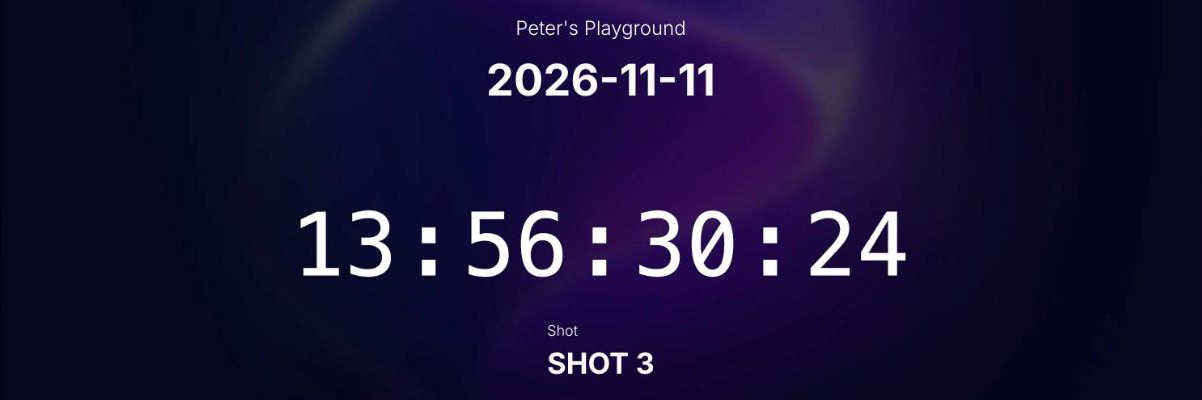
The same screen holds the project's frame rate, sample rate, time zone and offset; see Setting up a project. Changes here apply to everyone on the project, including the loggers.
A timecode display anyone can open#
Press Copy Public Timecode Linkand open the link on any screen: a monitor on set, a tablet, a phone. It shows the project's name and the running clock full-screen, and it does not need anyone to sign in. Click it to switch full-screen on and off. It shows the time of day in the project's time zone, wherever the screen is, with the same sync dot and number under it. It updates by itself if the frame rate, time zone or offset changes. The project Overview has a copy button for the same link.
Note
Anyone with the link can see the project's name and the clock, and nothing else. The link stops working while Broadcast Tools are not on the project's plan.
Timecode as audio#
The Timecodeplay button plays timecode out of the device as an audio signal (LTC), at the project's frame rate and sample rate. At 50 fps the audio timecode runs at 25 fps, as the standard requires. Press it again to stop.
It runs on the same production clock as every clock in EVA Story: EVA Story's own time plus the project's offset, as the time of day in the project's time zone, so it carries the frame the screen shows. If the offset, time zone or frame rate is changed while it plays, it restarts by itself with the new time.
Timers#
Timers count down to zero: the time left in a segment, a break, or a slot.
- 1
Press Add Timer. Click its title to rename it.
- 2
Type how long it should run, in a form like
1m 30s,45s,1 hour 30 min, or1.30for a minute and a half. - 3
Turn on Show to Loggers if the loggers should see it on their capture screen.
- 4
Press Start. While it runs, use Pause, Resume and Stop. At zero it shows Timer Finished, and Reset sets it up to run again.
- The time turns yellow in the last minute and red in the last ten seconds.
- Everyone looking at the project sees the same timers, and they update live.
- The bin icon deletes a timer straight away, with no confirmation.
Note
Timers count on the production clock, the same one as the timecode, so every screen shows the same time left whatever its own clock says.
Clapper Board#
The Clapper Board is a digital slate for an iPhone or iPad, on the production clock. Hold it up to the camera and tap the clapper bar, the striped bar across the top: the screen flashes white for one frame in time with a clap sound, so the camera sees the flash and the sound recorder hears the clap. It shows the production and its logos, the roll, scene, shot and take, the director and cameras, the date and frame rate, and a running timecode. Every value is sized to fit its box, and a long scene wraps onto up to three lines.
It needs iOS or iPadOS 16 or later. On anything older the board is not laid out properly.
A slate follows one logger's capture screen. There are three ways to open one:
- Signed in, choose Broadcast Tools, then Open Clapper Board. The list shows every capture screen open on the project in the last hour, with the logger, the device, whether it is still open, and its scene, shot, take and roll. Pick one, or Project settings only. Click the preview, or Full screen, to fill the screen. Press Esc to come back, or tap the name at the top of the slate to go back to the list.
- The Slatebutton on the logger's capture screen shows a QR. Scan it with the phone's own camera.
- A shared link. Beside the preview in Broadcast Tools, Copy link and the QR hand the same slate to another device.
A link or QR opens the slate with no sign-in. On an iPhone, Safari can't put a web page full screen. Swipe up on the slate (anywhere but the clapper bar) and Safari hides its bars, most of all with the phone held sideways; swipe down to bring them back. For true full screen, tap Share, then Add to Home Screen, and open the slate from there. The slate's start screen says both.
A slate, and its home screen icon, follows one capture screen in one browser tab. A reload keeps the same slate, but if the logger opens the capture screen in a new tab or on another device, that screen has a new slate: scan its QR again, and add that one to the home screen.
Clapping#
Only the clapper bar claps. The first tap on it starts the slate: it turns the sound on and keeps the screen awake, and on an iPad it fills the screen. After that, each tap on the clapper bar is a clap, the notes on it included (and, on a slate opened from a link or QR, the name on it too). A tap anywhere else does nothing unless it lands on a field or a button, so a hand holding the board never claps by accident. INT/EXT and DAY/NIGHT are buttons: tap one to set it, tap it again to clear it. The Full screen button at the end of the mode line, beside the EVA Story mark, fills the screen and exits it again (on an iPhone it explains the swipe and the Home Screen, since Safari has no full screen for a page). The timecode freezes on the clap for two seconds with ● CLAP, then runs on, with the last clap shown small beside it.
If the device stops the sound (a call, another app, the slate going to the background), the slate asks for a tap on the bar to start again, and clears that by itself if the sound comes back. In MOS · silent it never waits: each tap on the bar still claps.
Where the device can't keep its screen on for a web page, the bar says Screen may sleep · set Auto-Lock to Never: on an iPhone or iPad, set it in Settings, then Display & Brightness, then Auto-Lock.
The flash waits for the speaker, so picture and sound line up, and the clap's timecode is the moment it is heard. Bluetooth audio is usually too slow for a slate: when it is, the slate says so, and the device's own speaker is the one to use.
The clap plays at the device's media volume, so turn it up. From iOS 17 it plays even with the ring/silent switch on silent; on iOS 16 the switch silences it, so set the switch to ring.
- SYNC · clap sound is for a take with sound rolling: each clap flashes and sounds, and its marker is named Clap. MOS · silent is for a take with no sound recorded: each clap flashes without a sound, and its marker is named MOS. The line under the buttons says which is on, for as long as it is on.
- TAIL turns the board upside down, the way a tail slate is held. The next tap is a tail clap, and the board turns back.
- +1 on the take counts it up by one. The take never moves on by itself, because the take being clapped is the one being logged.
- Tap the roll, scene, shot or take to change it on the slate's own keyboard, laid out like a computer's. Tap the director to pick a name from the project's directors, or Type a name. Tap the camera to tick the cameras on this log: the list is the project's camera gear, and the slate shows every camera ticked.
- A change shows on the logger's screen within a second, and the logger's changes show on the slate. If the logger is typing in that field, the slate's change waits until they leave it, and if they typed after it, their typing wins. A field with a lock is set for every logger in Global Log Overrides, and can be changed only there.
The name at the top of the slate (Following Thandi · iPad) has a green dot while that capture screen is open, and a grey one once it has closed. A grey slate keeps showing the last values. Offlineshows in red, with the clock's sync dot beside the timecode.
Claps on the log#
Each clap becomes a marker on the log open on the logger's screen, at the clap's timecode, named Clap, MOS or Tail clap. The markers go into the log export with the others. When the logger is not rolling (no log open), a clap is not logged, and the slate says so.
A slate that goes offline keeps its claps, shows how many are waiting, and sends them when it is back, each with its own time: a SYNC clap carries the moment it was heard, a MOS clap the moment it was tapped. When the log a clap belongs to has been saved in the meantime, the project's Late claps setting decides where it goes.
Note
Project settings only follows no capture screen. It shows the Global Log Overrides, locked, and the clock. Its claps flash and sound but are not logged, and it has no link and no QR.
Note
Anyone with a slate's link can see what that slate shows, change its roll, scene, shot, take, director and cameras, and clap. Nothing else on the project. While Broadcast Tools are not on the project's plan, its claps flash and sound but are not logged.