Logging on set
The capture screen is where logs are made: start a log when something begins, mark the moments inside it, and save it when it ends. Every log carries the timecode of when it happened.
Choose Log Events in the project menu. You need edit access to logs to capture. Without it the screen says You can't add new logs, but you can still see the recent logs under it.
The screen#
On a laptop, the details of the shot run down the left, and the workspace fills the right:
- Timecode: the live clock, at the project's frame rate and offset. It turns red while a log is open. Timers marked Show to Loggers appear under it.
- The slate: Scene, Roll, Shot, Take, INT/EXT, DAY/NIGHT, Director and Location.
- Tags, Cast and Gear, each picked from a list that opens on the right.
- Your notes: the Scene description box. When you transcribe, the live transcript runs beside it.
- The button bar: the Transcribe switch, Photo, Slate, and the log buttons.
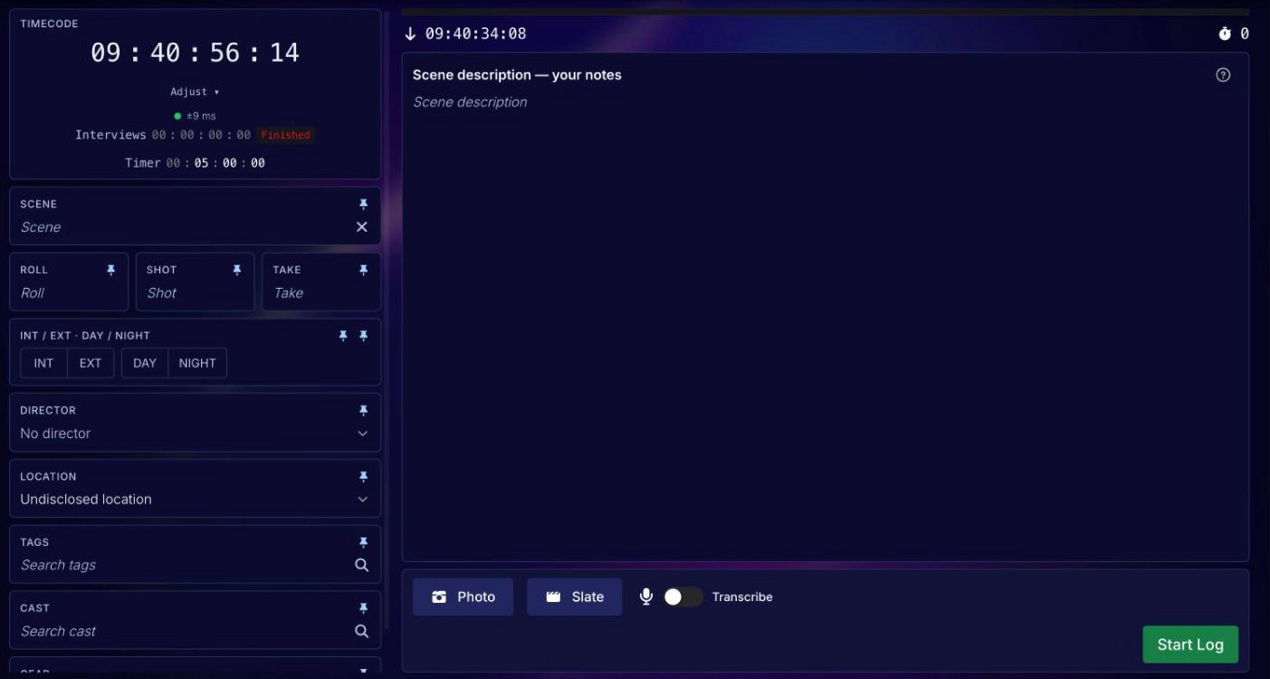
Under it all, Recent Logs lists the last ten logs, yours only unless you switch off Show only my logs.
On a computer the capture screen is one screen tall: the slate is a column on the left, the notes sit beside it with the buttons always in view along the bottom, and Recent Logs wait below when you scroll. On a phone, the slate shrinks to one summary line, such as Bride arrives · A01 · 3 · 2. Press Edit slate to open the fields, and the button bar stays pinned to the bottom of the screen.
Each field in the slate column has a small pin beside its label. A pinned field keeps its value when you press Log and Clear or Split; a field you unpin is cleared for the next log. Everything is pinned to begin with, and each person's pins are remembered on their own device. The notes, markers and photo are not pinned: they always start fresh.
The buttons#
With no log open, there is only Start Log. Once a log is open, it is replaced by four buttons:
| Button | What it does |
|---|---|
| Start Log | Opens a new log. Its start time is the moment you press it, with the project's offset applied. |
| Log and Clear | Saves the log, with its end time the moment you press it. Then it clears the screen for the next one: the notes, markers and photo always start fresh, and every field you have not pinned is cleared too (see below). Fields set for every logger stay. |
| Mark Time | Marks a moment inside the open log, without saving or closing it. It adds a heading such as [10:14:03:12] Marker 1: to your notes; type what happened after it. |
| Split | Saves the log and starts the next one at the same instant, so nothing falls between them. The pinned fields carry over; the notes, markers and photo start fresh. |
| Cancel | Throws the open log away without saving. What you typed stays in the boxes, and any marker headings in the notes are marked (Invalid). There is no confirmation. |
Mark Time or Split?
Use Mark Time for moments within one take or conversation: they stay in the same log and become markers in the edit. Use Split when one thing ends and the next begins straight away, such as the next question or the next scene.
The slate, tags, cast and gear#
- Scene is required for a typed log. A voice log can be saved without one, and EVA Story writes a scene title from what was said.
- A field marked set for all is filled in for every logger from the project's Global settings, and can't be changed here.
- Choosing a Locationthat has gear attached asks whether to replace the gear list with that location's gear.
- Search tags, Search cast and Search gear open a list on the right. Type to narrow it, then tap a name or press Enter for the top match; the search clears so you can type the next one. To make a tag that isn't there, type its name and choose Add new tag at the foot.
- Search cast and Search gear list what was set up in Settings.
- INT/EXT and DAY/NIGHT are toggles: press one to set it, and press it again to clear it. Directorlists the project's users and crew with the Director or Series Director role, and is filled in for you when there is only one. These three stay as they are from log to log, and when the page reloads, until you change them.
The Slate button#
Slateturns a phone or iPad into a clapper board that follows this screen. Press it, and scan the QR code with the camera assistant's phone or iPad, or press Copy linkand send them the link. It opens with no sign-in. The slate shows this screen's roll, scene, shot, take, INT/EXT, DAY/NIGHT and director, and the cameras in the gear on the log. A change made on the slate comes into your fields, but not into a field you are typing in until you leave it. Cameras picked on the slate replace the camera gear on your log; the rest of your gear stays as it is. A dot on Slate means a slate is following, and the window says how many.
Each clap on the slate becomes a marker on the open log, at the moment of the clap, named Clap, MOS or Tail clap. ● Clap 14:32:07:12 shows over your notes for a few seconds; nothing is added to the notes themselves. By default, a clap that arrives just after Split or Log and Clearstill goes on the log it was clapped in. With no log open, the clap isn't logged and the screen says Clap not logged · not rolling. Like Mark Time markers, claps become markers in the edit.
A photo of the scene#
Press Photo, then Capture photo, and Use photo when it looks right. On a phone it uses the back camera. A small thumbnail shows beside the button, and the photo goes with the next log you save. Press the thumbnail to retake it, or its cross to remove it. Photos need a connection.
Recording your voice#
Depends on your plan
Voice to log uses the project's transcription hours. If there is no Transcribeswitch on the button bar, voice isn't on the project's plan, or its hours are used up. See Plans and billing.
- 1
Turn on Transcribebefore you start the log. The first time, EVA Story explains that transcription counts against the project's hours, and the browser asks for the microphone. Choose the input if you have more than one, and check the level meter moves when you speak.
- 2
Press Start Log. Recording starts, and REC shows how long it has been going.
- 3
Speak, and the words appear in the live transcript beside your notes. A pause starts a new paragraph, and each paragraph shows the timecode it was said at. Words still being heard show in italics at the bottom.
- 4
Save with Log and Clear or Split as usual.
The live transcript is separate from your notes. Speech never goes into the Scene description box, so what you type is never mixed up with what was said. Switch Transcribeoff when you aren't logging, because every minute recorded counts, speech or not.
Flagging what someone said#
While the log is open, tap a paragraph in the live transcript to flag it. Add a note if you like, then press Flag. Three things happen:
- The paragraph turns amber.
- A line like
[10:14:03:12] Marker 2: "what was said" — your noteis added to your notes. - The log gets a marker at the moment the words were said, not the moment you tapped.
Flags and Mark Time markers are numbered together, and both become markers in the edit. Press Unflag to take a flag back before the log is saved. Its line leaves your notes too, unless you have edited it.
After a voice log is saved#
The log is saved straight away. Over the next few minutes EVA Story finishes it in the background:
- The recording uploads, if it hasn't already.
- Any stretch the live transcript missed, offline for example, is transcribed from the recording.
- A scene title (if you left Scene blank) and a one-line summary are written from what was said.
- A speaker transcript is made, timed line by line.
- A write-up is added: a summary of the conversation, the key story points, and key bites (word-for-word quotes, each with its speaker and timecode). It is written in the language that was spoken.
All of this appears on the log by itself, and your notes are never changed. See Reading and editing a log for the recording, speakers and write-up.
If something goes wrong while recording#
EVA Story keeps the recording on your device before anything is sent, so a dropped connection or a closed tab doesn't lose it. When something needs attention, a coloured message appears above the buttons:
| Message | What to do |
|---|---|
| Microphone access is blocked | Allow the microphone from the icon in the browser's address bar, then switch Transcribe on again. |
| A call or another app has taken the microphone | Nothing is being recorded. End the call or close the other app, then check the level meter moves. |
| Lost the microphone — recording has stopped | Plug it back in or pick another input. Everything recorded so far is kept. |
| No sound … for 10 seconds | Check the microphone and its cable or feed. |
| Transcription paused — you're offline | Keep going. Audio is still recorded and is transcribed after you save. |
| Live transcription is unavailable | Keep going. Audio is still recorded and is transcribed after you save. |
| Audio hasn't uploaded yet | Keep the tab open; it keeps retrying. |
| Audio can't be saved on this device | Keep the tab open and free up space on the device. |
| Transcription is switched off for this project | The project's voice hours are used up or switched off. Audio is still recorded, but this stretch isn't transcribed. |
- Closed or reloaded the tab mid-log? Open the capture screen again: the log carries on where it stopped and says Recovered an unfinished recording. If it can't, choose Resume or Discard on An unfinished recording is waiting.
- Only one tab records. If the capture screen is open in two tabs, a red warning says so. Close the others, because only one can record.
- Uploads waiting. Uploading recording… under the buttons means audio is still on its way. Keep the page open until it goes.
Logging without a connection#
If the connection drops, the status at the top of the page says Offline, with how many logs are waiting to sync. Keep logging: logs you save are kept in the browser and sent when the connection is back. If the page reloads, an unfinished log comes back, and a page this device has opened before opens offline. Photos and live transcription wait for the connection, but the recording carries on.
An unfinished typed log is kept on this device: if the page reloads or the browser closes, open the capture screen again and it comes back, with the message Recovered an unfinished log. A photo taken for it doesn't come back.
The top bar shows whether this device has sent this project's logs and recordings: All synced, 3 logs waiting to sync, 1 unfinished log, Uploading recording 40%, or Offline. Recordings upload while the capture screen is open, so after you reconnect, choose Log Events on the project and leave it open until the bar says All synced. If a log you were recording comes back, it carries on recording: finish it with Log and Clear and it uploads. Cancel deletes it. If the bar says Sync status unavailable, this browser is blocking storage. Logs still save, but check that private browsing is off.
Adjusting the clock#
People who can edit the project's settings see Adjust on the timecode box. It opens the same offset controls as the timecode screen: - and + for hours, minutes, seconds and frames, and Reset. The offset is the project's, so changing it moves the clock for every logger. See Offset.