Finding logs
History holds every log on the project. Narrow it by day, time, tag, cast or location, or search for the words in it.
Choose History in the project menu. It opens on the last seven days, newest first, 25 logs to a page. A new log appears there as soon as it is saved, wherever it was written.
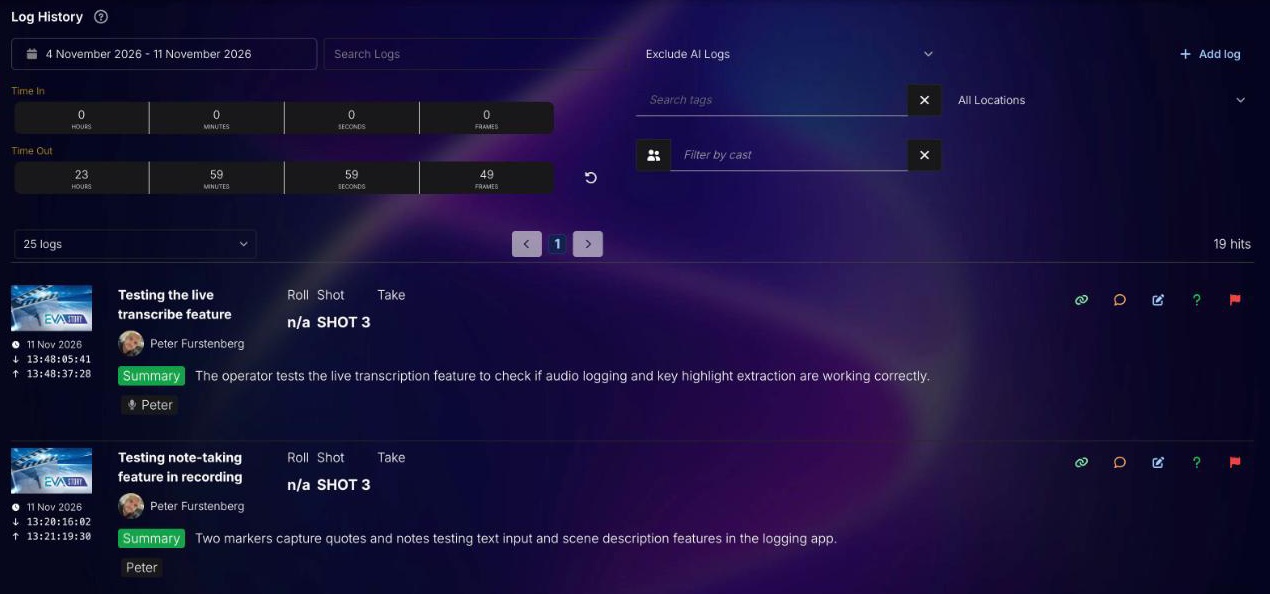
Narrowing the list#
| Filter | What it does |
|---|---|
| Date range | The days to look in. Pick a first and a last day; the list updates when the calendar closes. |
| Time In / Time Out | A time of day, in timecode, applied to every day in the range: only logs between those times show. An Out time earlier than the In time covers the hours across midnight. The circular arrow resets it to the whole day. |
| Search tags | Show logs carrying any of the tags you pick. |
| Filter by cast | Show logs with any of the cast members you pick. |
| All Locations | Show logs from one location. |
| AI logs | Exclude AI Logs (the default) hides logs added by EVA AI. Include Only AI Logs shows nothing else, and All Logs shows both. |
The page size (25, 50 or 100 logs) and the page buttons are above and below the list, with the number of hits. A count like 100+ hits means there are at least that many.
Tip
If a new filter shows No items to display, check that you are on page 1. The page doesn't always go back to the start when a filter changes.
Searching#
Type in Search Logsand pause; the search runs a second after you stop typing. It looks in each log's scene, description and spoken text, and lists the logs that contain every word you typed, best match first. Endings don't matter: weddings finds wedding. The filters above still apply.
A log's summary and the names of its cast aren't searched. Use the cast filter to find a person.
When nothing matches every word#
EVA Story doesn't just say “no results”. It tries again in one of these ways and tells you what it did:
- A near spelling. If one of your words appears nowhere in the project, it is probably mistyped. EVA Story looks for logs where each word is off by one letter, and says No exact matches. Showing logs that differ by one letter.
- Logs about the same thing. EVA Story looks for logs that mean what you typed, even in other words. Each one shows a match percentage under its timecode, and hovering over it tells you whether it is a strong, possible or weak match.
- Most of your words. If every word is real but no single log holds them all, EVA Story shows the logs holding the most of them, with rarer words counting for more. It says No log contains all of those words, and names any word that appears nowhere on the project.
If you see No items to display, nothing came close: try fewer words, or widen the date range. The first time you open History, a search that finds nothing in the last seven days widens the dates by itself to cover the logs that match.
Working with a result#
Each row shows the frame grab, the date and timecodes, the scene, the location, who captured it, roll, shot and take, the summary or description, and its tags and cast. On a phone the description shows in place of the summary. Click a row to open the whole log. The buttons beside it:
- Copy link: copies an address for the log to send to someone on the project.
- Add comment: a note on the log under a topic, for the rest of the team.
- Edit log: opens the log editor. See Reading and editing a log.
- Follow up and Flag: see Flags, follow-ups and Tag Watch.
Editing, flagging and following up need edit access to logs. The + button at the top adds a log by hand, after the fact.