Stories, notes and schedules
The production tools beside the logs: a board to shape the story, notes the team writes together, and the plan for each shoot day.
Depends on your plan
Stories and Schedules are included in the Unit, Crew and Studio plans and the production pass. On Indie they are add-ons. Notes is in every plan. See Plans and billing.
Stories#
Stories is a board of story cards in columns, one for each stage. A new project starts with Pre-production, Production, Edit, Final Mix, Grading and Delivered. Each card has a title, a description and a status: On Time, Ahead, Delayed or Behind.
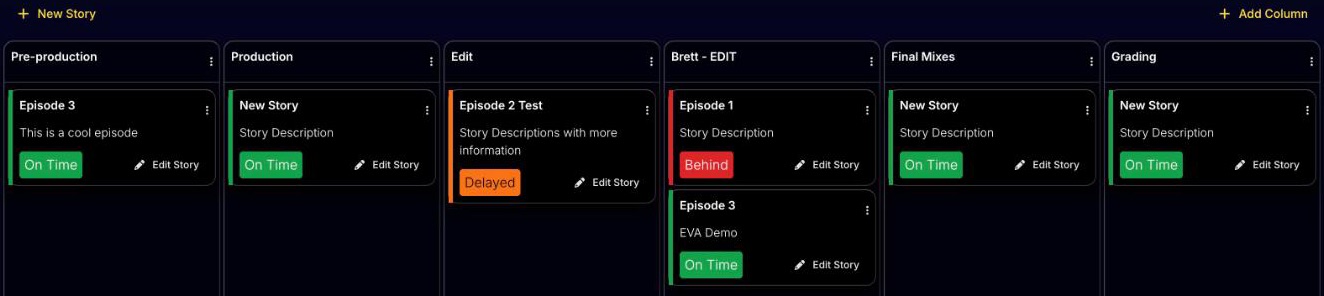
- New Story adds a card to the first column. Add Column adds a stage.
- Drag cards between columns as a story moves along. On a touch screen, press and hold a card before dragging.
- Click a card's title, description or status to change it where it is.
- A column's menu renames it, moves it left or right, or deletes it. Only an empty column can be deleted.
Building a story from logs#
- 1
Press Edit Story on a card to open the story.
- 2
On the left, the Logs tab searches the project's logs by date and words. Noteslists the project's notes.
- 3
Drag logs and notes into the story area, then drag them into order.
Each item in a story shows its timecode, a Log or Notebadge, and its text, which you can rewrite for the story. The clipboard icon opens the original log. A story holds a copy of each log at the moment it was added. Changing the story's copy leaves the log alone, and later changes to the log don't reach the story. Export PDF makes a PDF of the story for the edit.
Note
The board saves as a whole. If two people rearrange it at the same moment, the last change wins, so agree who is moving cards.
Notes#
Notes are shared documents for the production: call sheets, director's notes, research, anything that isn't a log. Press New Note, give it a title, and write.
- Several people can write in the same note at once, and each sees the others' typing as it happens.
- The label beside the title says whether your work is Saved. It saves a couple of seconds after you stop typing.
- Export PDF then Download makes a PDF of the note. The bin deletes it, after a confirmation.
Schedules#
A schedule is one shoot day's plan. Press New Schedule and fill in the parts you need. It saves by itself as you go.
- Title, date and description. Changing the date moves every time on the schedule to the new day.
- Contacts: pick a team or crew member and the role they are on this day for. Their email and mobile number come with them. People need roles to be listed; see Roles.
- Call Times: Add Call Time for each call, with a time, a label and a location.
- Weather: pick a location to fetch the day's sunrise, sunset, temperatures and forecast.
- Gear: the kit needed on the day, with its operators.
- Schedule: the running order. Rows have a start time, an optional end time, and columns for Scene, Cast and Notes. Rename, move, add or delete columns from their menus. A row's menu can duplicate or highlight it.
- Notes: anything else about the day.
Export PDFmakes a PDF of the schedule to send round. Gear, locations and roles all come from the project's settings, and each part of the schedule links to the setting it uses.
Note
A schedule saves as a whole, so two people editing the same schedule at once can overwrite each other. One editor per schedule works best.