Exporting to the edit
Log Export turns a day's logs into markers your editing software can read. PDF Export puts logs on paper.
Depends on your plan
Exports open when a project's plan starts, not during the free trial. Everything logged in the trial is kept, and can be exported once the plan starts. Someone who manages billing can press Start my plan now to start it early.
Log Export: markers for your editing software#
- 1
Choose Export in the project menu, then Log Export.
- 2
Pick the day. An export covers one day at a time.
- 3
Optionally narrow it with a search, or to one location. The list on the right shows what will be exported, with each log's In and Out times and scene.
- 4
Press Export XML.
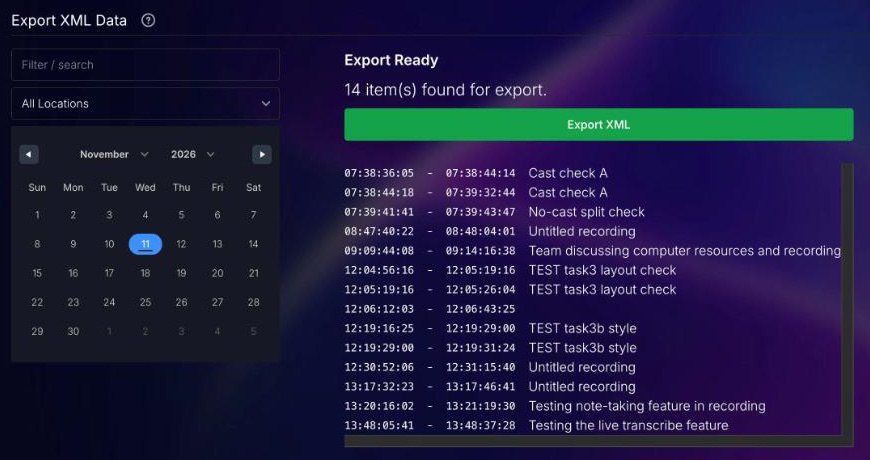
You get an XML file named after the project and the day, for example My Project - 2026-11-11.xml. It is in the Final Cut Pro 7 XML format, which Adobe Premiere Pro imports. Import it into your project and it opens as a sequence at the project's frame rate, starting at the first log's timecode.
What's in the file#
- Each log is a markerspanning its In and Out times, named after its scene, with its description (and its cast) as the marker's comment.
- Each marker inside a log becomes a point marker of its own, named like
Scene 4 - Marker 2, with the notes written after that marker in the description as its comment. A flag from the live transcript carries the words that were said and your note. - Markers are coloured by the log's first tag, or blue when a log has no tags. That's why it pays to give tags distinct colours; see Tags.
- Logs from EVA AI are always included.
Tip
Markers only land in the right place if the cameras ran time-of-day timecode and the project's frame rate and offset match them. See Timecode and offset.
PDF Export#
- 1
Choose Export in the project menu, then PDF Export.
- 2
Pick a range of days, and optionally search to narrow it. A preview shows the first five logs.
- 3
Press Download now!. It takes a moment to build the document.
The PDF is A4, newest log first. For each log it shows the In and Out times, who captured it, the location, roll, shot and take, the scene, the description, tags, cast and gear. Summaries, markers, flags, comments, photos and transcripts are not included.
Notes, stories and schedules each have their own Export PDF button; see Stories, notes and schedules.