Reading and editing a log
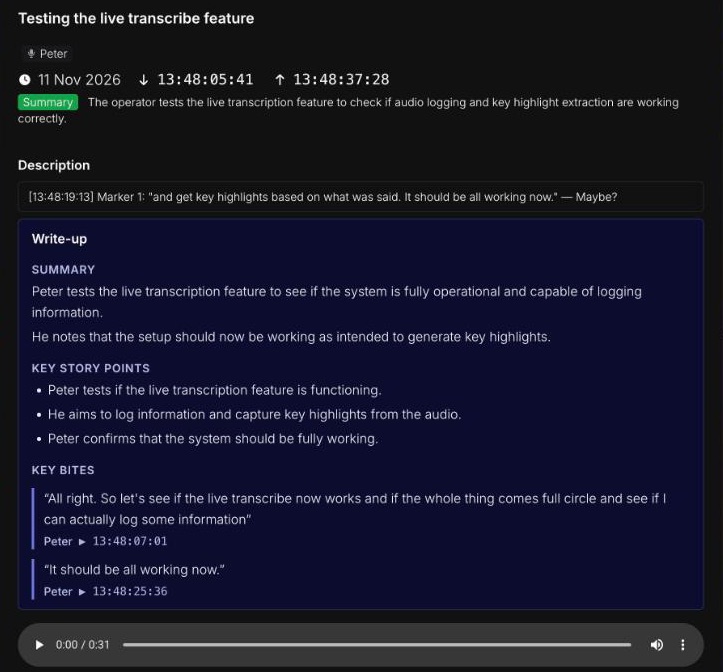
A log is one moment of the shoot: when it started and ended, what happened, who and what was in it. Voice logs also hold the recording and a timed transcript.
Opening a log#
- Click a log in History, Flags, Follow-ups or Tag Watch to open it in a window. It stays up to date while it is open, so a recording still uploading appears when it arrives.
- A link someone copied opens the log on a page of its own, for reading only. Refresh that page to see later changes.
What a log holds#
- Scene, as the heading, with its tags and cast underneath.
- Date and timecode: the day, and the In and Out times.
- Summary: one line saying what the log is about, when there is one.
- Description: the logger's notes. Marker headings look like
[10:14:03:12] Marker 1:, with the notes for that moment after them. On a voice log, what was said is in the transcript and the write-up, not here. Voice logs recorded before November 2026 still carry their speech in the description. - Write-up, recording and speaker transcript, on voice logs.
- Frame grab, roll, shot and take, captured by, and the gear that was used.
- Location, with a map.
Flags, follow-ups and comments on the log are listed under it.
Summaries#
A summary is a single line, written by AI from the description, that shows under the log in History. Voice logs get one automatically. A typed log gets one when it is first saved, if its description is long enough to need one (80 words or more). Shorter logs are their own summary.
Summaries are a reading aid only. Search never matches on a summary, so every search result points at words a person actually wrote or said.
Voice logs#
Depends on your plan
Voice to log depends on your plan. Each plan includes a number of hours of voice transcription a month, and a free trial includes two. See Plans and billing.
The recording#
A voice log keeps the whole recording beside the text. Press play on the player to hear it. If the recording was interrupted, it comes in parts, labelled Part 1 of 2 and so on, and the parts play one after another.
- Loading the recording… shows what it is waiting for. If it can't load, press Retry.
- No sound was recorded for this log means the microphone was taken by something else, such as a phone call or another app, during the recording.
The speaker transcript#
After a voice log is saved, EVA Story listens to the whole recording again and writes a transcript of it, line by line, each line with a timecode and a speaker. While it works it shows Labelling speakers…. Recordings longer than 30 minutes get a timed transcript without speaker labels.
- Click a line's timecode to play the recording from that moment.
- While the recording plays, the line being spoken is highlighted.
- Hide and Show fold the transcript away.
The write-up#
Once the speaker transcript is ready, EVA Story adds a Write-up under the notes, in the language that was spoken. It shows Writing up… while it works. It has three parts:
- Summary: a few paragraphs on what the conversation covered.
- Key story points: the main points, one line each.
- Key bites: word-for-word quotes worth using, each with its speaker and timecode. Click a timecode to play from there. Anything you flagged while logging is left out, because it is already in your notes.
The write-up is AI-written, so check it against the recording before relying on it. Like the summary, search never matches on it. You can edit it in the editor; see Editing a log.
Naming speakers#
Speakers start as Speaker 1, Speaker 2 and so on. To give one a name, you need edit access to logs:
- 1
Click the speaker's label on any of their lines.
- 2
Type a name, or pick one of the suggestions: names already used on this log, then the project's cast.
- 3
Press Use or Enter.
The name replaces the label on every one of that speaker's lines in this log, and it saves straight away. Picking a cast member also adds them to the log's cast. Clear name goes back to the label.
Editing a log#
With edit access to logs, press Edit log (the pencil) on a log in History. The editor holds everything on the log:
- Scene, the description, the summary, tags and cast.
- The date, and the In Time and Out Time. Changing the date moves both times to the new day.
- Roll, Shot, Take, INT or EXT, DAY or NIGHT, the Director, the location and the gear.
Press Save to keep your changes, or Cancel. The bin icon deletes the log, after a confirmation. A deleted log can't be brought back.
Writing a summary with Summarise#
Press Summarisebeside the Summary field and EVA Story suggests a summary of the description as it is in the box, including changes you haven't saved. It only fills the field: edit it, keep it or clear it, and nothing is saved until you press Save. The button needs a description of at least 80 words.
Editing the write-up#
On a voice log the editor has a Write-up card: the summary, the key story points (one per line) and each key bite, which you can change or remove. Regenerate asks for a fresh one and fills the fields. As with Summarise, nothing is saved until you press Save. An older voice log without a write-up can get one this way.
Markers#
Markers are the moments marked inside a log while it was open, with Mark Time or by flagging the live transcript; see Logging on set. They become point markers when you export to the edit, each carrying the notes written after its heading in the description. You can change those notes in the description, but not where a marker sits in time.
A log with markers shows a Markersrow, in time order: each marker’s name and timecode, with a clapperboard beside a clap from the Clapper Board (Clap, MOS or Tail clap). It appears on the log in History and Recent Logs, when you open the log, and in the editor. In the editor, each clap has a ×: use it to remove a stray clap. Mark Time markers and flags have none, because they belong to a heading in the description. The clap goes when you press Save; close the editor without saving and it stays.
Note
While a voice log is still being finished, its description is locked and shows Finishing the transcript…. Everything else can be edited, and your changes are kept when the transcript arrives.